Images matter more than ever. You need good visuals for social media, blogs, YouTube thumbnails, online shops, and even resumes. But here’s the common problem: not everyone knows graphic design. Many people struggle with dark photos, poor backgrounds, dull colors, or boring layouts.
That is why so many users search for how to edit image in Canva.
If you are a beginner, student, freelancer, housewife, content creator, or job seeker, this guide is made for you. You do not need advanced skills. You do not need expensive software. Instead, you only need Canva and a few easy steps.
In this complete guide from Online Earning Empire, you will learn:
- What Canva image editing is
- Step-by-step editing process
- Best tools and features
- Common beginner mistakes
- Smart tips for better results
Let’s begin.
What Is Canva Image Editing?
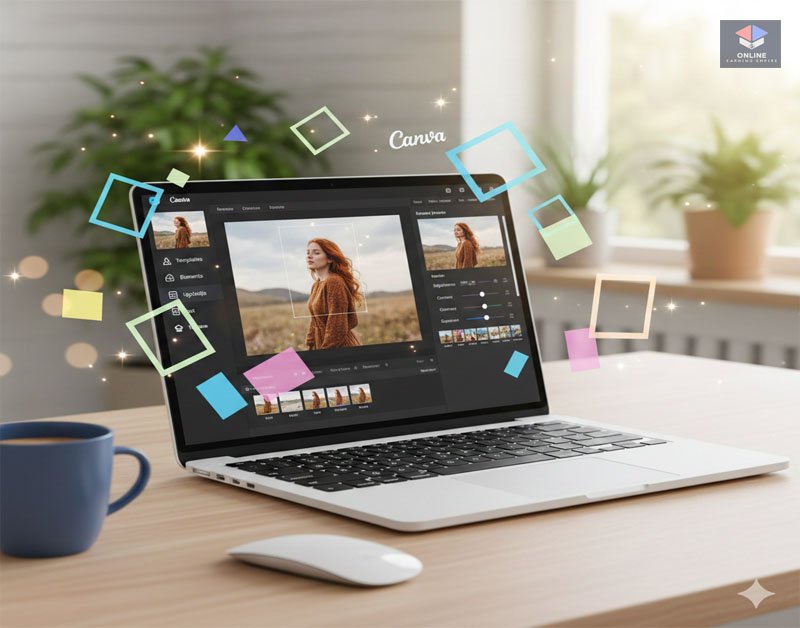
Canva image editing means improving or modifying pictures using Canva’s built-in tools.
With Canva, you can:
- Adjust brightness and colors
- Crop images
- Remove backgrounds
- Add text
- Apply filters
- Add effects
Unlike complex design software, Canva keeps everything simple. You click, drag, and edit without confusion.
Because of this, Canva is perfect for beginners.
Is Canva Legit or Scam?
This is a common question, especially for new users.
Canva is completely legit.
Millions of people use Canva worldwide. Businesses, teachers, marketers, freelancers, and students rely on it daily.
Why Canva is trustworthy:
✔ Well-known global platform
✔ Used by professionals
✔ Secure website & payments
✔ Free version available
So yes, Canva is safe to use.
Why Do People Edit Images In Canva?
People edit images for many practical reasons.
🔹 Social Media Posts
Good visuals attract attention. Bright, clean images often get more likes and shares.
🔹 Blogging & Websites
Edited images make your content look professional and credible.
🔹 Online Earning
Freelancers and digital sellers use Canva for client work, ads, and designs.
🔹 Personal Projects
Invitations, posters, presentations, resumes — all need good visuals.
Simply put:
Better images = Better impact
Step-by-Step Guide: How To Edit Image In Canva
Now let’s move to the most important part.
Step 1: Open Canva
Visit Canva’s website or open the mobile app.
Log in or create a free account.
Click:
Create Design
Choose any size or template.
Step 2: Upload Your Image
On the left panel:
Uploads → Upload Files
Select your image.
Drag the image into your design.
Step 3: Select The Image
Click on the image once.
Editing options will appear at the top.
This is where Canva photo editing begins.
Essential Canva Editing Tools
These tools are beginner-friendly and very useful.
1️⃣ Adjust Settings
Click:
Edit Photo → Adjust
You can change:
- Brightness
- Contrast
- Saturation
- Temperature
- Highlights
- Shadows
Example:
If your image is too dark → Increase brightness
If colors look dull → Increase saturation
Make small changes for natural results.
2️⃣ Filters
Filters quickly change image style.
Popular choices:
- Warm
- Cool
- Vintage
- Black & White
However, avoid overusing filters. Too much filtering can damage quality
3️⃣ Crop Tool
Click Crop.
Remove unwanted parts of the image.
Perfect for:
✔ Fixing framing
✔ Removing distractions
✔ Resizing visuals
4️⃣ Flip & Rotate
Need to adjust orientation?
Use:
- Flip Horizontal
- Flip Vertical
- Rotate
Simple yet very handy.
Advanced Canva Image Editing Features
Once you understand basics, explore these powerful tools.
🔹 Background Remover
This is one of Canva’s most loved features.
Click:
Edit Photo → Background Remover
Canva removes the background automatically.
Best for:
✔ Product photos
✔ Profile pictures
✔ Thumbnails
✔ Marketing visuals
This saves huge editing time.
🔹 Effects & Styles
Canva offers many effects:
- Shadow
- Glow
- Blur
- Duotone
Effects help your images stand out.
Still, keep designs clean and simple.
🔹 Add Text To Images
Click Text → Add Heading
You can:
✔ Change fonts
✔ Adjust colors
✔ Add shadows
✔ Align text
Perfect for:
- YouTube thumbnails
- Instagram posts
- Ads & banners
🔹 Transparency Tool
Lower transparency to create overlays.
Great for stylish designs.
Pros And Cons Of Editing Images In Canva
Every tool has strengths and limits.
✅ Pros
✔ Extremely easy to use
✔ Beginner-friendly interface
✔ Free version available
✔ Fast editing process
✔ No design skills required
✔ Works on desktop & mobile
❌ Cons
✘ Some features require Pro plan
✘ Limited deep editing vs Photoshop
✘ Requires internet connection
For most users, Canva’s benefits outweigh the limits.
Common Mistakes Beginners Make
Many new users repeat these errors.
❌ Over-Editing Images
Too much brightness, contrast, or saturation makes images look unnatural.
Solution:
Edit gently.
❌ Using Low-Quality Images
Blurry images cannot be fixed fully.
Solution:
Always use high-resolution pictures.
❌ Too Many Effects
Glow + shadow + blur + filters = messy design.
Solution:
Keep visuals clean.
❌ Poor Text Placement
Text that is too small or poorly aligned looks unprofessional.
Solution:
Use Canva alignment guides.
Tips To Edit Images Faster & Better
Want smoother results? Follow these practical tips.
✔ Start With Good Images
Quality input always gives quality output.
✔ Keep Design Simple
Modern designs are clean, not crowded.
✔ Use Contrast Smartly
Text must be easy to read.
✔ Maintain Consistent Colors
Consistency builds trust and branding.
✔ Save Multiple Versions
Experiment safely without losing work.
✔ Use Templates When Needed
Templates speed up your workflow.
Can Canva Help In Online Earning?
Yes, absolutely.
Many people use Canva for income-related tasks.
Examples:
✔ Social media graphics
✔ YouTube thumbnails
✔ Logo design
✔ Instagram posts
✔ Ads & banners
✔ Client projects
Freelancers often offer Canva design services on:
- Fiverr
- Upwork
- Freelancer platforms
Important reminder:
Canva is a tool, not a money machine.
Your skills, creativity, and consistency determine your success.
Safety Tips When Using Canva
Although Canva is safe, follow smart practices.
✔ Use copyright-free images
✔ Avoid copying other designs
✔ Create original content
✔ Respect client requirements
✔ Protect your login details
Professional habits build long-term trust.
FAQs – How To Edit Image In Canva
❓ Can beginners edit images in Canva?
Yes. Canva is designed for beginners. You can learn basic editing within minutes.
❓ Is Canva free for photo editing?
Yes. Many editing tools are available in the free version, including crop, brightness, filters, and text.
❓ How do I remove background in Canva?
Select your image → Click Edit Photo → Choose Background Remover (Pro feature).
❓ Does Canva reduce image quality?
Not if you use high-quality images and avoid excessive effects.
❓ Can I use Canva designs for clients?
Yes. Canva is widely used for professional work like social media graphics and marketing materials.
❓ Is Canva better than Photoshop for beginners?
For beginners, Canva is much easier. Photoshop is better for advanced editing.
Conclusion
Learning how to edit image in Canva is one of the most useful digital skills today. Whether you want better social media posts, blog graphics, thumbnails, or marketing visuals, Canva makes everything simple and accessible.
You do not need design experience. You do not need expensive tools. Instead, you only need practice and creativity.
Start with basic adjustments. Then explore advanced features like background remover and effects. Most importantly, avoid over-editing and keep your visuals clean.
With consistent use, your designs will improve quickly.